Shared business rules
The mobile client works through the API. The server owns tenancy, permissions, prices and business rules so each client uses the same decisions.
Point of sale & business management
A sales and stock workspace for everyday business, available on web and Android in English and Kiswahili.
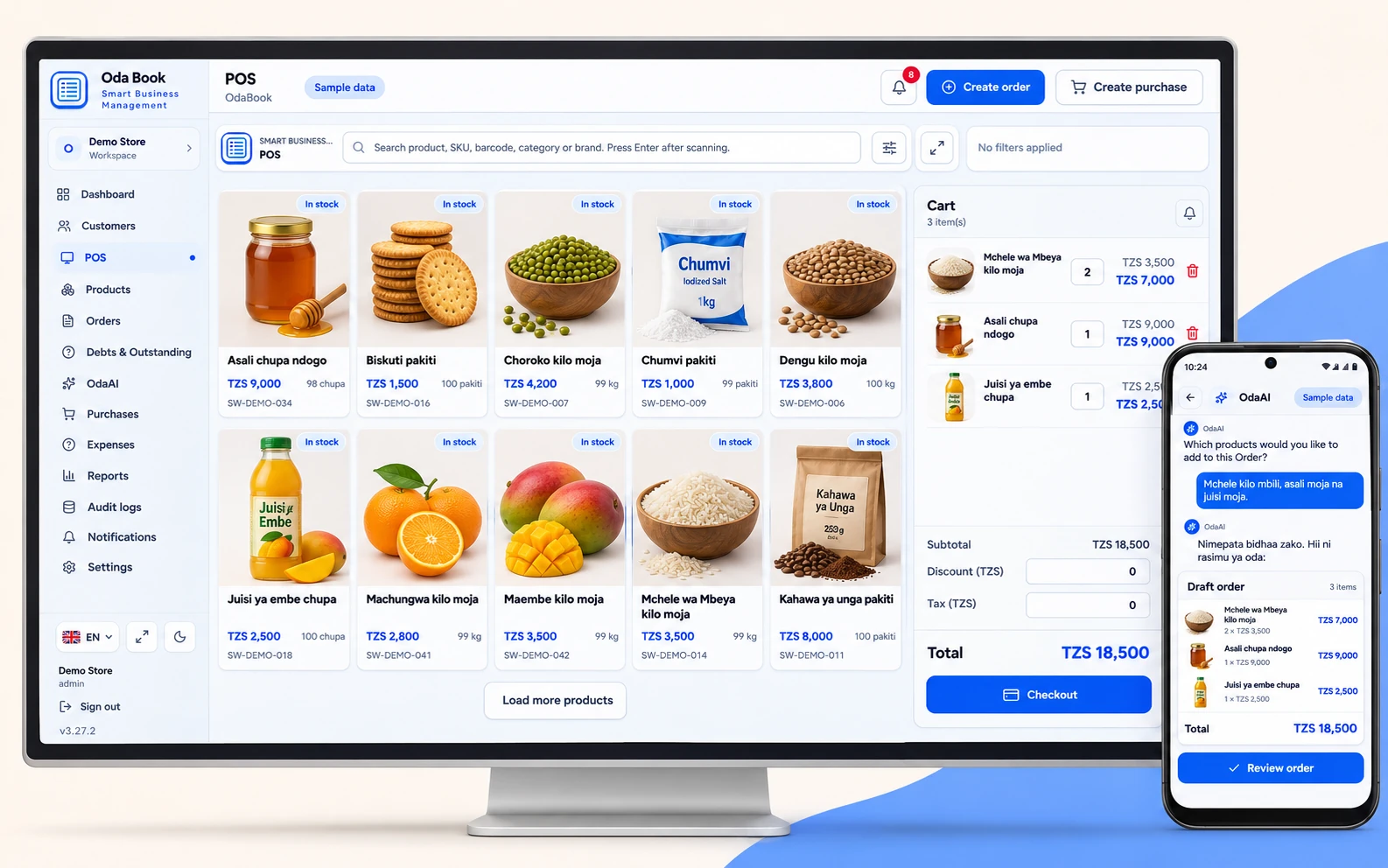
Overview
OdaBook brings everyday trading into one workspace: sales, products, stock, purchasing, orders, expenses, debts and reports. Web and Android clients connect to shared business rules, with English and Kiswahili interfaces and an OdaAI workflow that can prepare an order for review.
Engineering contribution
Technical details
Shared business rules, offline synchronisation and reviewable assistant drafts support the sales workflow.
The mobile client works through the API. The server owns tenancy, permissions, prices and business rules so each client uses the same decisions.
A local SQLite outbox holds supported pending actions. Tenant-scoped idempotency helps prevent duplicate processing when connectivity returns, while conflicts remain reviewable.
OdaAI translates a request into a staged order. Product matches, quantities and totals remain visible for review before the business document is committed.
Add items and set the quantities.
Review the price and available stock before saving.
Confirm the sale at the till.
Open the receipt and see the sale in your records.
Supported sales saved offline sync when the connection returns.
Say or type the order you want to prepare.
Check the products and quantities OdaAI found.
Correct any items or quantities and check the total.
Confirm to record the sale.
Nothing is recorded until you confirm.
Resources

Emmanuel Mmanda
Find a published answer or ask Emmanuel directly.
Loading questions…
Need a more specific answer?
No questions yet. Browse the library to start.
Loading published answer…
Leave a comment